From missed calls to automated wins: Building 24/7 call handling workflows with Make + Retell AI
Discover how to combine the power of AI phone agents with Make's automation capabilities - and help your business thrive.


Every missed call represents potential lost revenue. Whether it's after hours, during weekends, or in high-volume periods, businesses of all sizes struggle to maintain consistent phone coverage without dramatically increasing overhead costs.
The good news? You no longer have to choose between missed opportunities and hiring a round-the-clock team. By combining the power of AI phone agents with Make's automation capabilities, you can create a system that answers calls, gathers information, and takes action, all without human intervention.
Let's build a complete solution that ensures you never miss another important call.
Why AI-powered call handling matters
Traditional solutions like voicemail or basic IVR systems often frustrate callers and result in abandoned inquiries. Modern AI phone agents offer a dramatically different experience:
- Natural conversation flow that mimics human interaction
- Ability to capture specific information from callers
- Real-time decision making based on caller intent
- Seamless handoff to your business systems through Make
When connected to Make's automation platform, these AI agents become even more powerful, updating your CRM, alerting teams via Slack, scheduling follow-ups, and more.
Setting up the retell AI + Make integration
Before diving into specific workflows, let's establish the connection between Retell AI and Make. Setup between the two platforms is very easy, giving you an array of options to choose from to build the exact automation you’re looking for.
Step 1: Create a Make scenario
- Log in to your Make account
- Click on "Create a new scenario"
Step 2: Connect Make to Retell AI
- In Make's scenario builder, click the "+" icon to add your first module
- Search for the verified Retell AI app and select any option
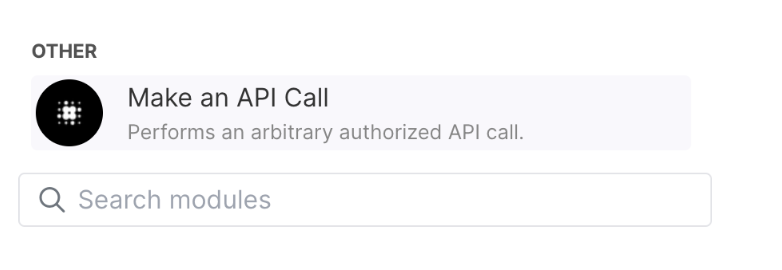
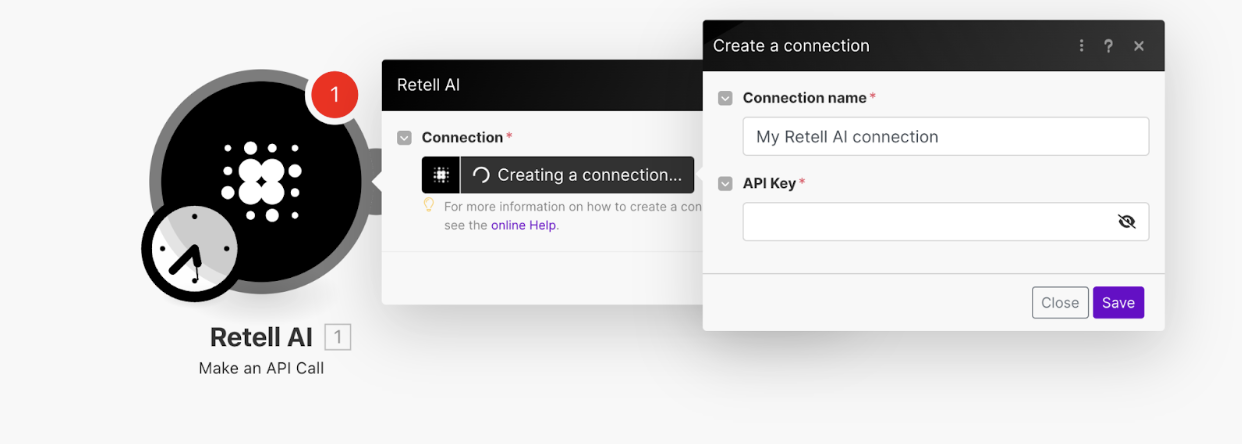
3. All that’s left is to add your API key from Retell AI and Make.
24/7 Call handling workflow
- RetellAI.com > Agent Setup
- In the Retell AI’s dashboard, create an agent to handle inbound calls.
- Configure:
- Agent voice and personality
- LLM type (e.g., GPT-4.1)
- Task logic and expected outcomes
- Retell webhook configuration (if you're not polling)
- This agent will now handle all incoming calls and generate transcripts/logs you can access via Make.
- Retell AI > List All Calls
- Use this as a scheduled module (e.g. every 5–15 minutes) to retrieve all recent inbound calls.
- Filter for call_status = completed and avoid duplicates by tracking call_id. - Add a filter to include only calls with status = completed and exclude duplicates based on a unique call ID.
- Tools > Iterator
- Iterate through each completed call object.
- Retell AI > Get a Call
- For each item from the iterator, use the call_id to fetch full metadata.
- Fields available in this step typically include:
- call_id
- phone_number
- started_at / ended_at
- agent_id
- transcript (entire dialog text)
- summary (if returned from the Retell agent or attached in a post-processing hook)
- status
- duration
- agent_tags (structured signals if defined in your agent logic) - Transcript
- Phone number
- Timestamp
- Agent and call context
- ChatGPT > Create a Completion
- Feed the full transcript into GPT and prompt it to extract:
- Caller intent
- Summary of the conversation
- Any follow-up action or urgency tags
- Feed the full transcript into GPT and prompt it to extract:
An example prompt can look like this:
Here is a transcript of a phone call between an AI agent and a customer. Extract the following:
The caller’s main intent in one sentence A brief summary of the conversation (max 2 sentences) If there is a follow-up action required (yes/no), and if yes, describe it Transcript: {{transcript}}
- Google Sheets > Add Row (Optional)
- Log the processed call for auditing and tracking. Include:
- Call ID, phone number, summary, intent, and timestamp
- Log the processed call for auditing and tracking. Include:
- Slack > Create a Message
Push a message to a team channel summarizing the call:“New completed call from {{phone_number}}Intent: {{parsed_intent}}Summary: {{summary_text}}Logged at: {{timestamp}}”

Add a module at the end of the scenario to log each call attempt.
Log fields such as:
- phone_number
- contact_name
- business_name
- call_timestamp (use Make’s "Current Date" module to generate this)
- task (the prompt that was used)
- status (e.g. 'sent', 'queued', or use a success/failure flag)
- response_id or call_id (if returned by Retell)
This log allows you to track campaign delivery, follow-up needs, and performance across multiple batches.
Bonus workflow: Auto-appointment scheduler
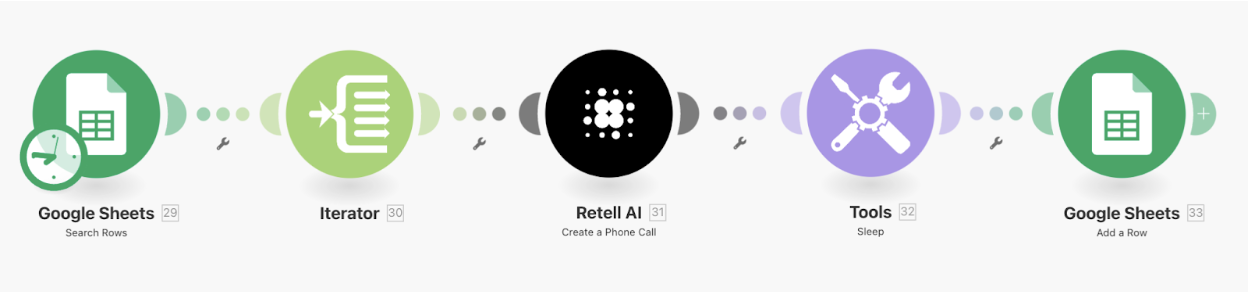
Retell AI’s Make module is designed to send one call at a time. You’ll loop through each contact from a Google Sheet and use the “Make a Call” action for each one.
Step-by-step setup (create agent + schedule follow-up calls automatically):
- Set Up Your Agent in Retell AI
- Go to your Retell AI dashboard and create a new agent.
- Configure the voice, tone, LLM type, and task logic.
- Define Retell LLM Dynamic Variables (e.g., contact_name, appointment_time) that you’ll later map in Make.
- Google Sheets > Search Rows
- Retrieve rows with scheduled appointments or callbacks.
- Your sheet should include columns like: contact_name, phone_number, appointment_time, agent_id, etc.
- Tools > Iterator
- Loop through each appointment row individually.
- Retell AI > Create a Phone Call
- This module triggers a phone call using the agent you’ve already configured.
- Required fields:
- From Number: One of your Retell AI-registered phone numbers
- To Number: The client or lead’s number (e.g. +1{{phone_number}})
- Override Agent ID: (Optional) Use if you want to select a specific agent per contact
- Toggle Retell LLM Dynamic Variables and add:
- contact_name = {{contact_name}}
- appointment_time = {{appointment_time}}
- Tools > Sleep (Optional)
- Add a 10–60 second delay between calls to prevent overload and mimic real-life pacing.
- Google Sheets > Add Row (Logging)
- Log every scheduled call attempt by appending a row with:
phone_number, contact_name, appointment_time, agent_used, call_timestamp, and optionally call_id or status
Use case ideas
Here are a few real-world workflows that build on the example workflow shown above:
1. Sales outreach at scale
- Use Retell AI to initiate cold outreach campaigns.
- Pull data from Google Sheets or CRM exports.
- Inject the company name and lead name into a dynamic outbound script.
2. Survey distribution
- Run post-sale or post-support call campaigns.
- Ask a few yes/no questions using the voice agent.
- Log responses or escalate to a human if specific phrases are detected.
3. Event RSVP confirmation
- Retell AI calls registrants for an event to confirm attendance.
- A dynamic prompt includes event name, location, time, and response instructions.
4. Internal operations alerts
- Notify delivery drivers, facility managers, or staff via call if critical systems are triggered.
- Set up your Make workflow to route based on region or shift schedule.
5. Appointment campaigns for SMBs
- Local clinics or service businesses can use Retell AI to follow up with dozens of clients in one click.
- Custom messages including name, appointment time, and action request.
Implementation tips for maximum effectiveness
- Match variable names carefully in Make and your prompt string
- Use test mode to validate your setup before full-scale runs
- Add delays or use Make’s scheduling features for pacing
- Review call transcripts and feedback to fine-tune message tone
- Monitor webhook responses and call delivery status
Getting started today
By combining Retell AI's conversational capabilities with Make's powerful automation engine, businesses of any size can implement enterprise-grade call handling without enterprise-level resources.
The setup process is straightforward, the capabilities are powerful, and the return on investment can be immediate, converting previously missed calls into captured opportunities.
Your 24/7 AI phone assistant is just a workflow away.
Related blogs
Tool and strategies modern teams need to help their companies grow.

AI
What is AI automation? A complete guide for 2026
Most teams use AI but stay stuck in pilots. Here's how AI automation turns those pilots into production systems.

Raife Dowley
May 21, 2026
AI
What is an AI agent?
Everyone's talking about AI agents. But what are they, why should you care, and how can Make help?

Vlad Galanov
February 13, 2025

Inside Make
DeepSeek AI & Qwen AI have arrived – here’s how to put them to work

Giorgi Berelashvili
February 13, 2025

AI
The rise of nondeterministic automation: how AI is changing the game
Vlad Galanov
March 24, 2025

AI
How to Automate your Workforce with AI and Automation
In this article, we’ll cover five Make templates that prove how easy it can be to implement artificial intelligence automation at your company.

Jeremy Lambert
January 4, 2023
AI
Introducing Make AI Agents: The next step in automation
Sebastian Mertens, Head of Applied AI at Make, explains how Make AI Agents bring the power of agentic automation directly into Make’s flexible, no-code environment - enabling smarter automation that adapts in real time.

Sebastian Mertens
April 14, 2025
.png)




.svg)
.svg)
.svg)